Roles and access per block
Organise access for owners, managers and field staff. Set which blocks a team member can work with, while keeping plans and field records in the same platform.
Farm management platform
Map your blocks, plan planting, and follow field work through its records and photos. Review weather and fertilisation timing for each block with your team.
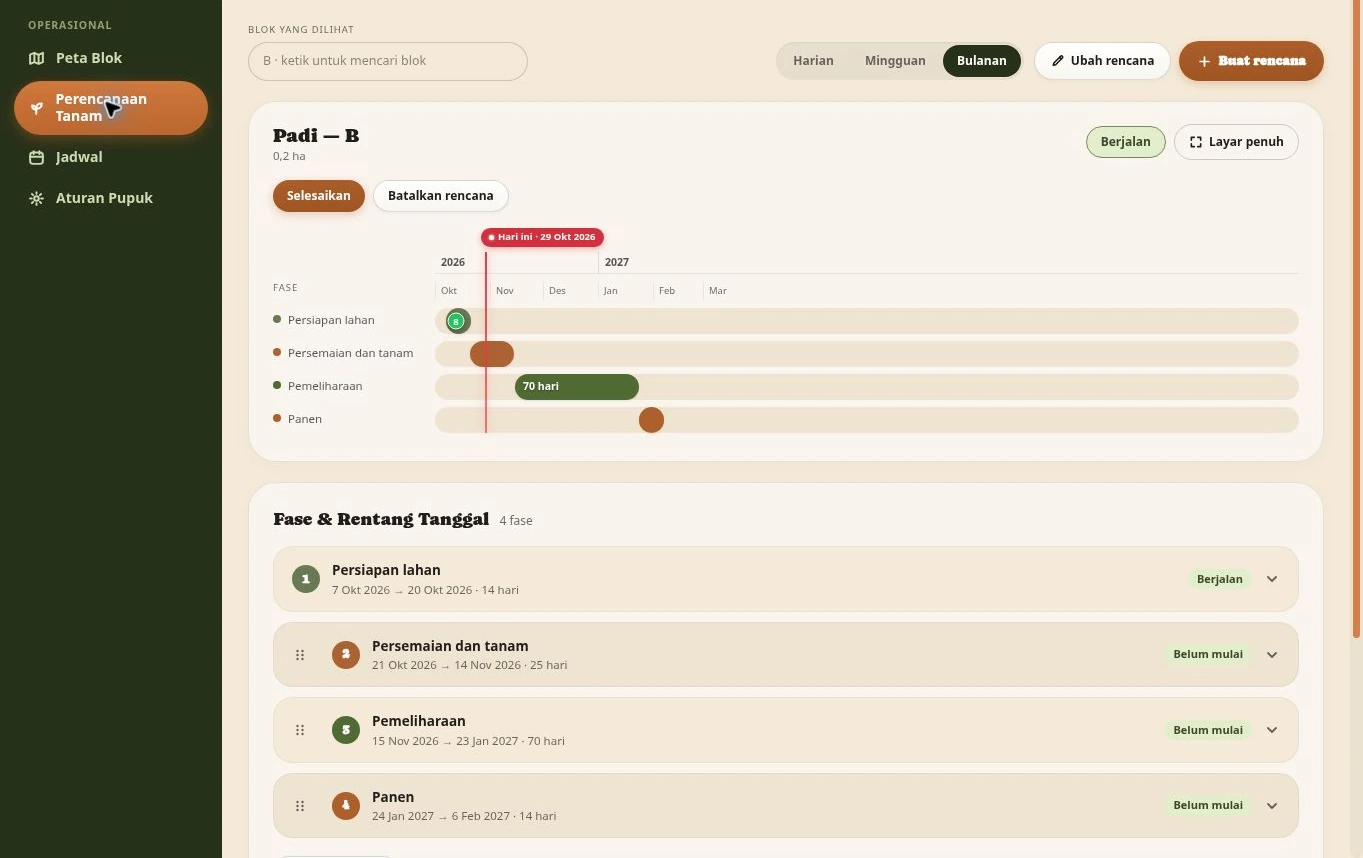
Demonstration data. Original application view, October 2026. Screenshots on this page show sample plans and weather.
Enlarge viewWatch the application
Play these short recordings to explore the timeline and calendar. They show the application using example data, at its original playback speed.
Follow the phases and dates in a planting plan, from land preparation to harvest.
Explore the activity schedule and calendar while reviewing the work planned for each block.
Use the same block as the starting point for plans, schedules and field records.
Draw boundaries or import an SHP map.
Set the crop, phases and target dates.
Read the calendar alongside the block's weather.
Save field notes and photos, then review progress.
01 / Planting plans
Start with a crop template and set the phases, tasks and dates. The timeline shown above brings the season into view, from land preparation to harvest.
Map the farm first: draw block boundaries or import an SHP map, then choose the block for the plan.
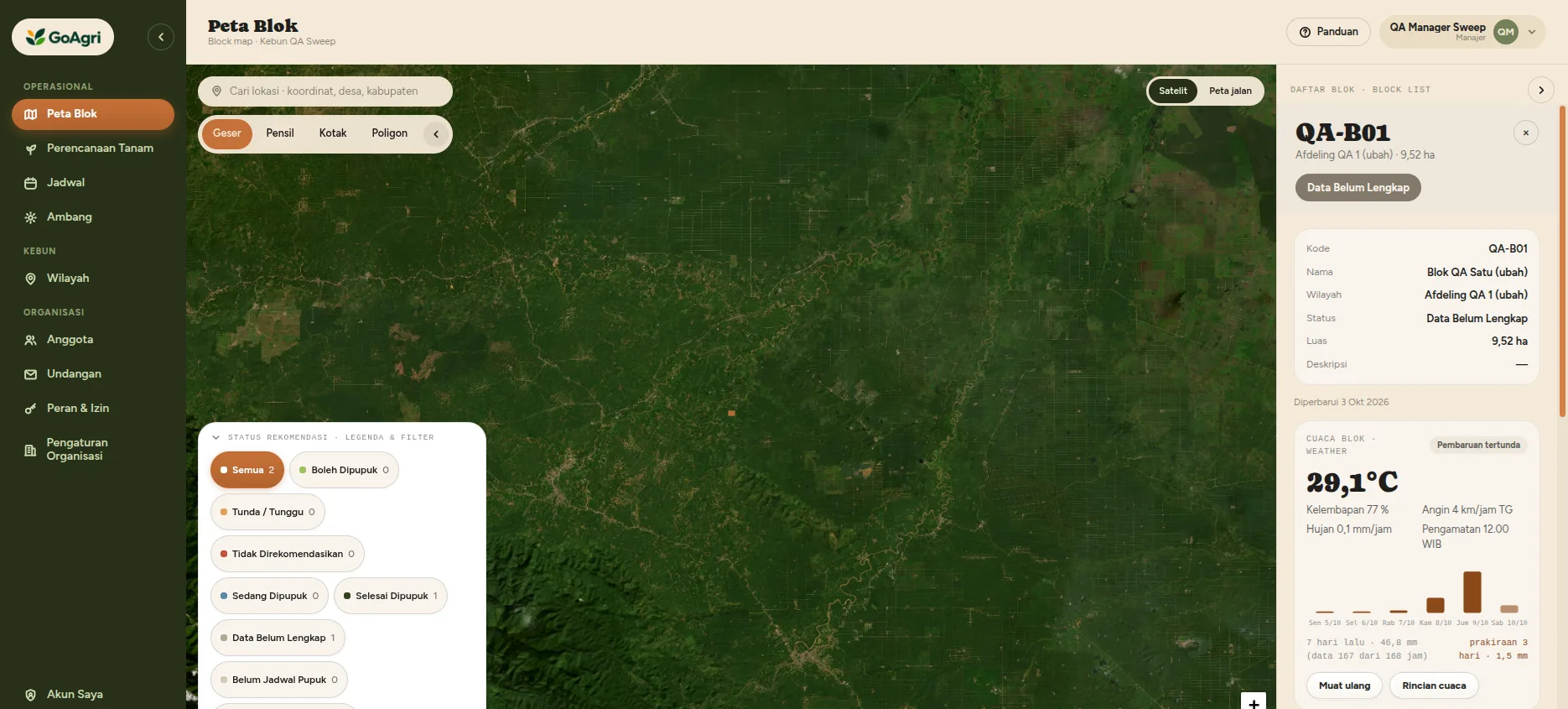
Example map published on the GoAgri product site. QA labels identify demonstration blocks.
Enlarge view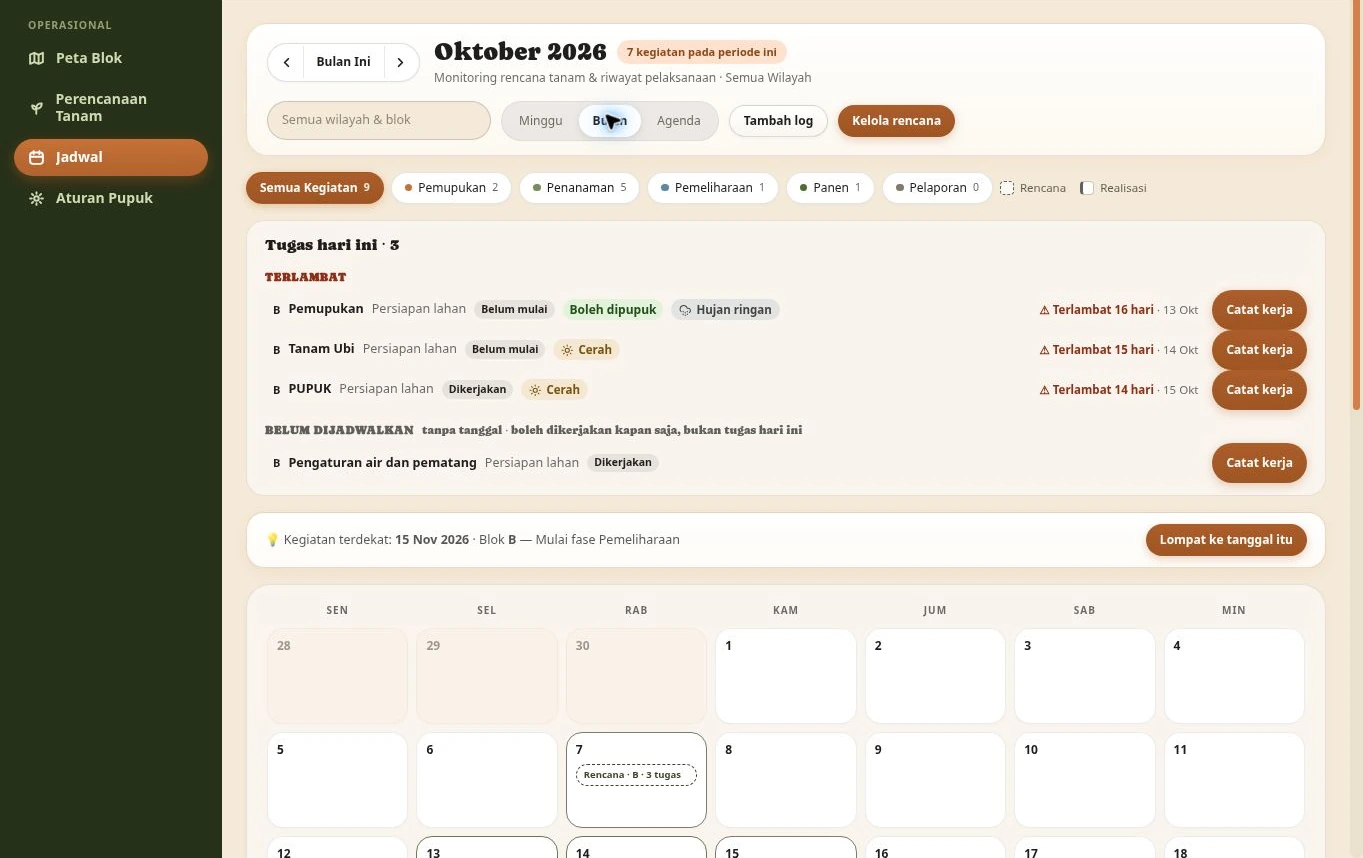
The sample calendar includes planned activities, work records and overdue tasks.
Enlarge view02 / Schedule & field records
See what needs doing, open a work record and follow progress from the same activity view.
03 / Fertilisation timing
Choose the fertiliser to assess and review the timing guidance for the block. GoAgri considers rainfall, estimated soil-water conditions and fertiliser properties.
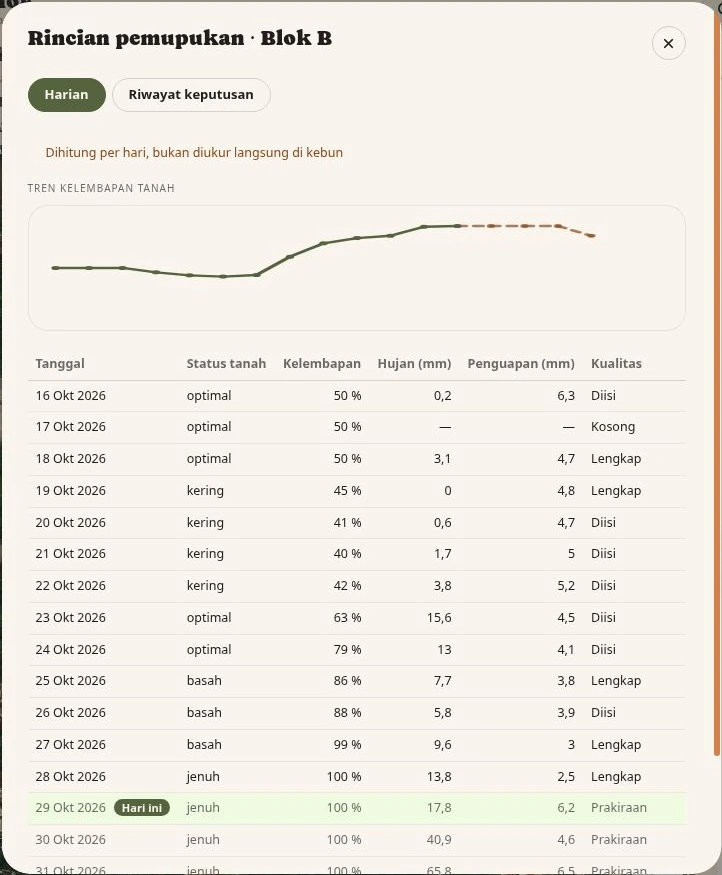
Soil-water conditions are calculated daily, not measured directly in the field. This is a historical sample, not live sensor data.
Enlarge view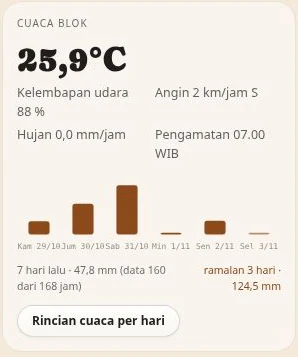
Sample weather card. Check the block, date and update time when reviewing the forecast.
Enlarge view04 / Block weather
Weather appears in the context of the selected block so the team can read it alongside the crop and the planned activity.
05 / Working together
Organise access for owners, managers and field staff. Set which blocks a team member can work with, while keeping plans and field records in the same platform.
The GoAgri demo shows an AI chat opened from the Block Map for questions about using the application and farm topics such as fertilisation. Discuss this assistant and the available account access during a product demo.
Use field observations and agronomic judgement when reviewing an answer.
In the field
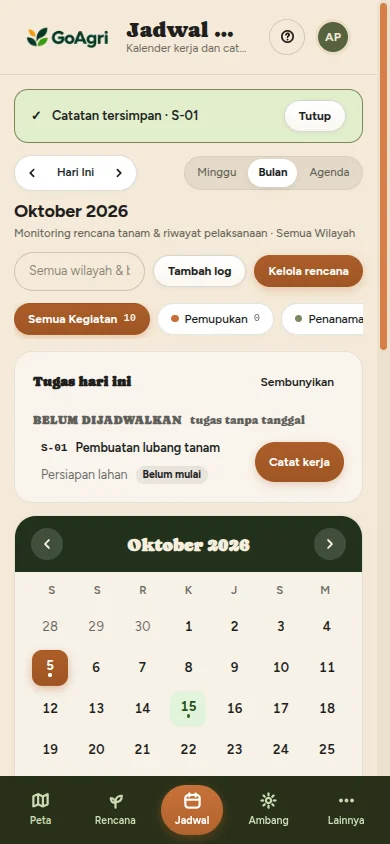
The mobile view brings the activity list, calendar and Record work action into reach. Field staff can review the task before adding its work record and photo.
Access follows the account's role and assigned blocks.
Bring sample blocks, the activities you want to manage and your team's roles. We can walk through that workflow together in a demonstration.
Sign in to the GoAgri application with your account. Discuss team roles, block access and support needs with Luwes when arranging your demonstration.
Farm sensors are not required. Recommendations use weather data and each block's agronomic profile. The results are model estimates; check field conditions before acting.
Weather-station integration and the pest engine are in development and are not yet available. Other recommendation engines are planned to follow.